Desktop app
Everything about your business, in one window.
Your assistant, your conversations, your settings — the whole AI Assistant Console, always open on your desktop.



Get the app
One download per computer: the first choice on each card is the one to take, unless your IT team asks for the package beside it.
macOS
6.5 MB · v1.1.1 (build 19) · Sep 25, 2026Notarized by Apple
Apple silicon & Intel · macOS 10.15 or later
Windows
2.2 MB · v0.2.2 · Sep 8, 2026Preview build — unsigned
64-bit · Windows 10 1809 or later
Linux
81.2 MB · v0.2.2 · Sep 8, 2026Preview build — unsigned
64-bit · glibc 2.31 (Ubuntu 20.04) or later
Release notes
v1.1.1macOS · released Sep 25, 2026
- The window's top bar is taller (40 px), with the window buttons centred in it and the same space above, below and beside every control.
- The Console draws its matching 40 px bar only for this app, so the bar and the window buttons always line up.
- The position of the window buttons can now be adjusted from busymate.ai without a new app download; a change applies the next time the app opens.
- Build 19 is the same app as build 18, numbered to match the Mac App Store: the download and the store now carry the same version and build.
How it is going, in numbers
The Insights pages of the AI Assistant Console, thirty days at a time, each drawn against the thirty before.
Know who comes back
- New visitors
- Returning visitors
- Counted once per day
- Where each audience arrives
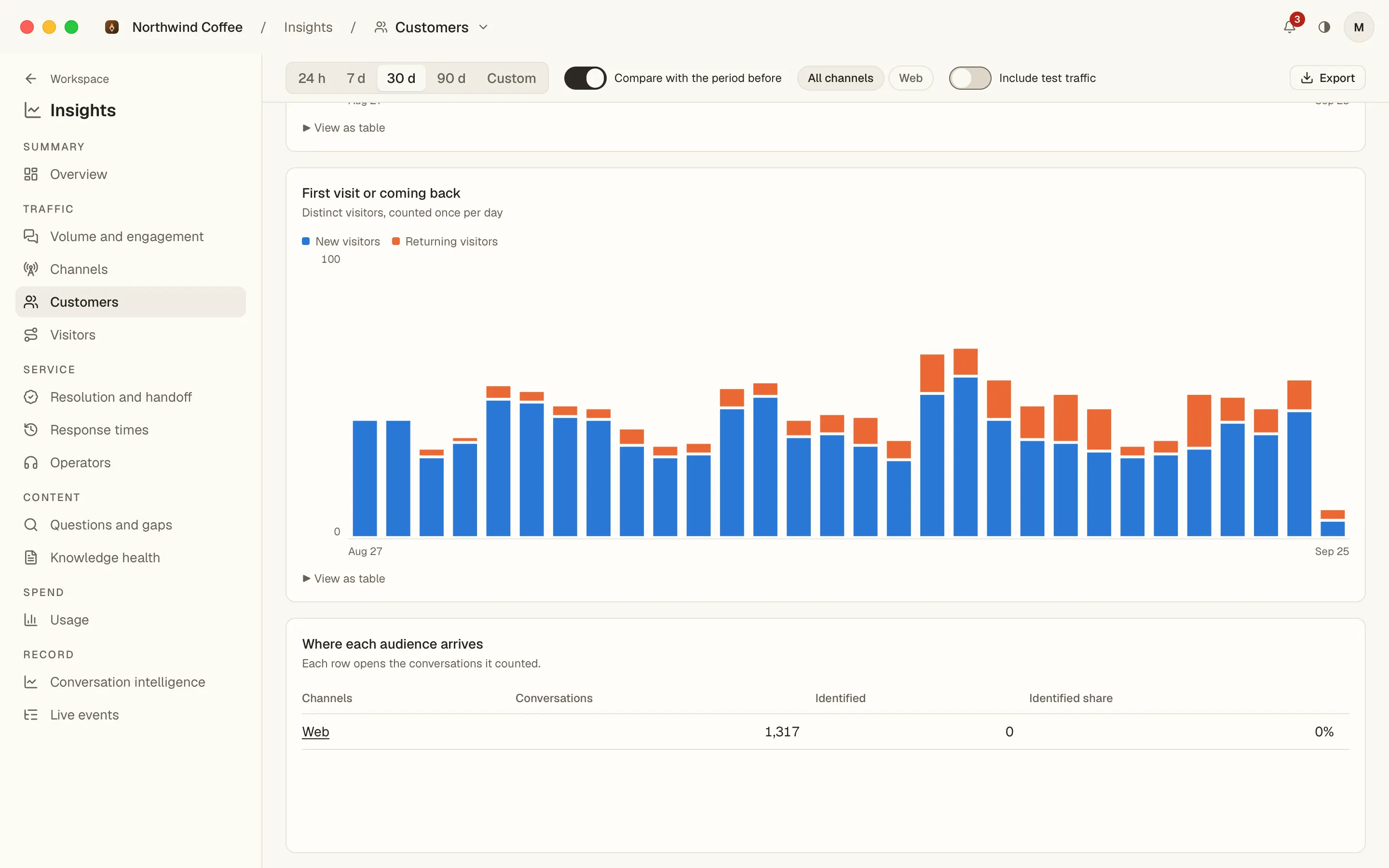
Each day's visitors split into first visits and returning ones, so you can tell whether people come back after the assistant helped them once, and which channel every audience arrives through.
The work your assistant does
- Assistant turns
- Assistant messages
- Conversation length
- Channel detail
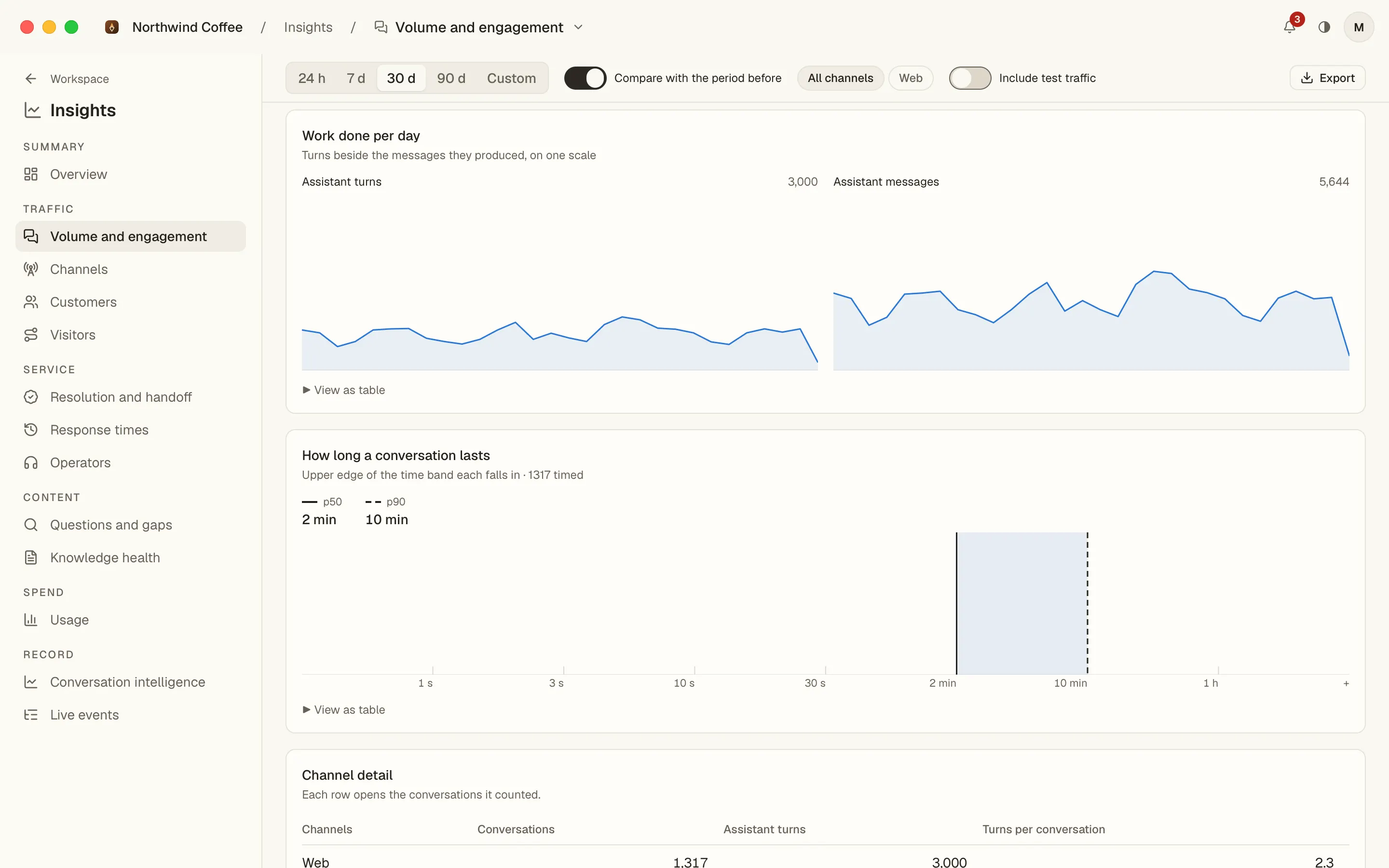
Assistant turns beside the messages they produced, day by day on one scale, then how long a conversation lasts, from the typical one to the longest tenth, and the same figures per channel.
When a person is needed
- Hand-off rate
- Previous period
- Requests per channel
- Opens in the Inbox
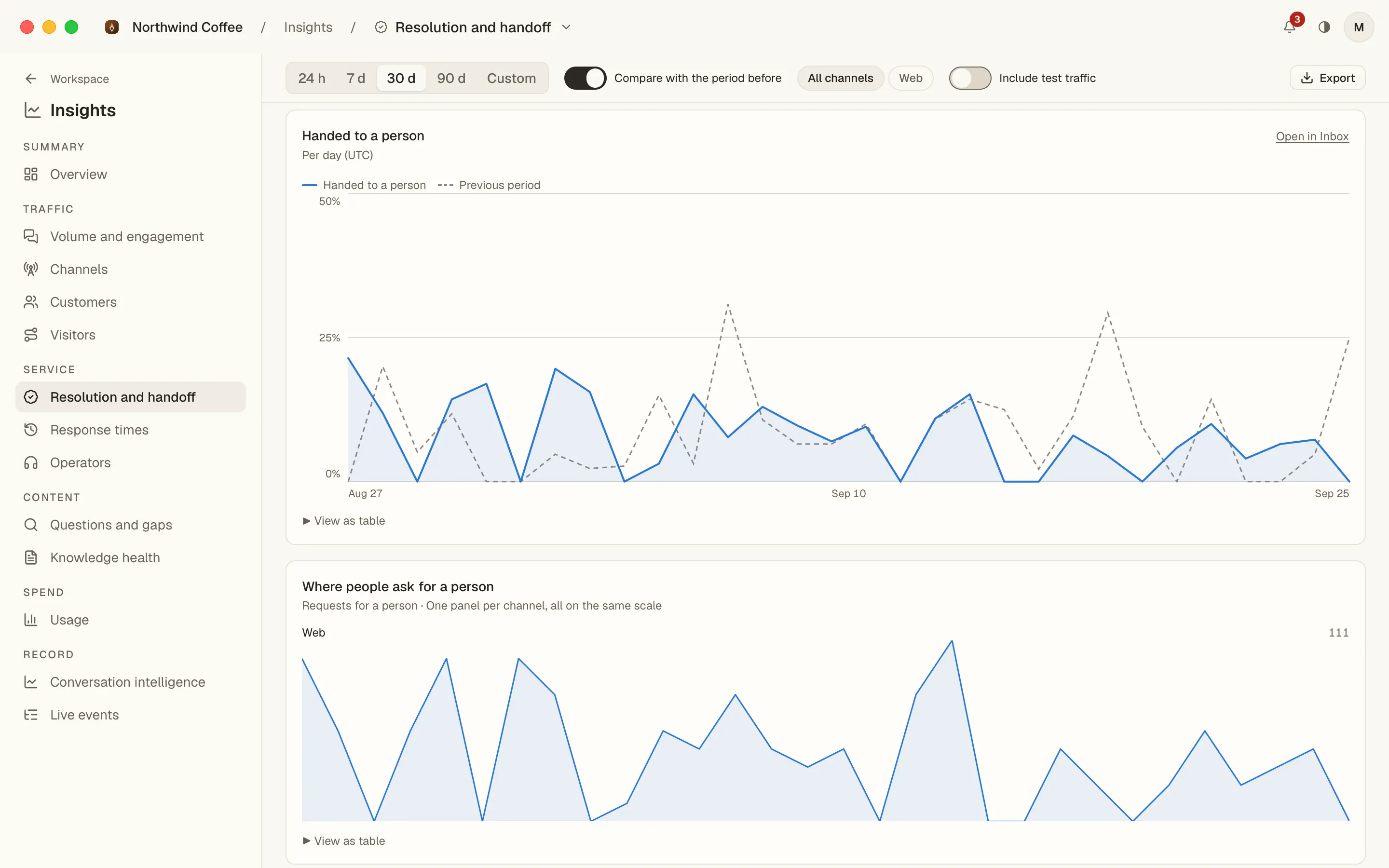
The share of conversations handed to a person each day, over the period before it, and the channels those requests come from, so a rising line shows before the queue does.
Your team, keeping up
- Picked up by the team
- Pick-up rate
- Person reply, typical
- Person reply, slow end
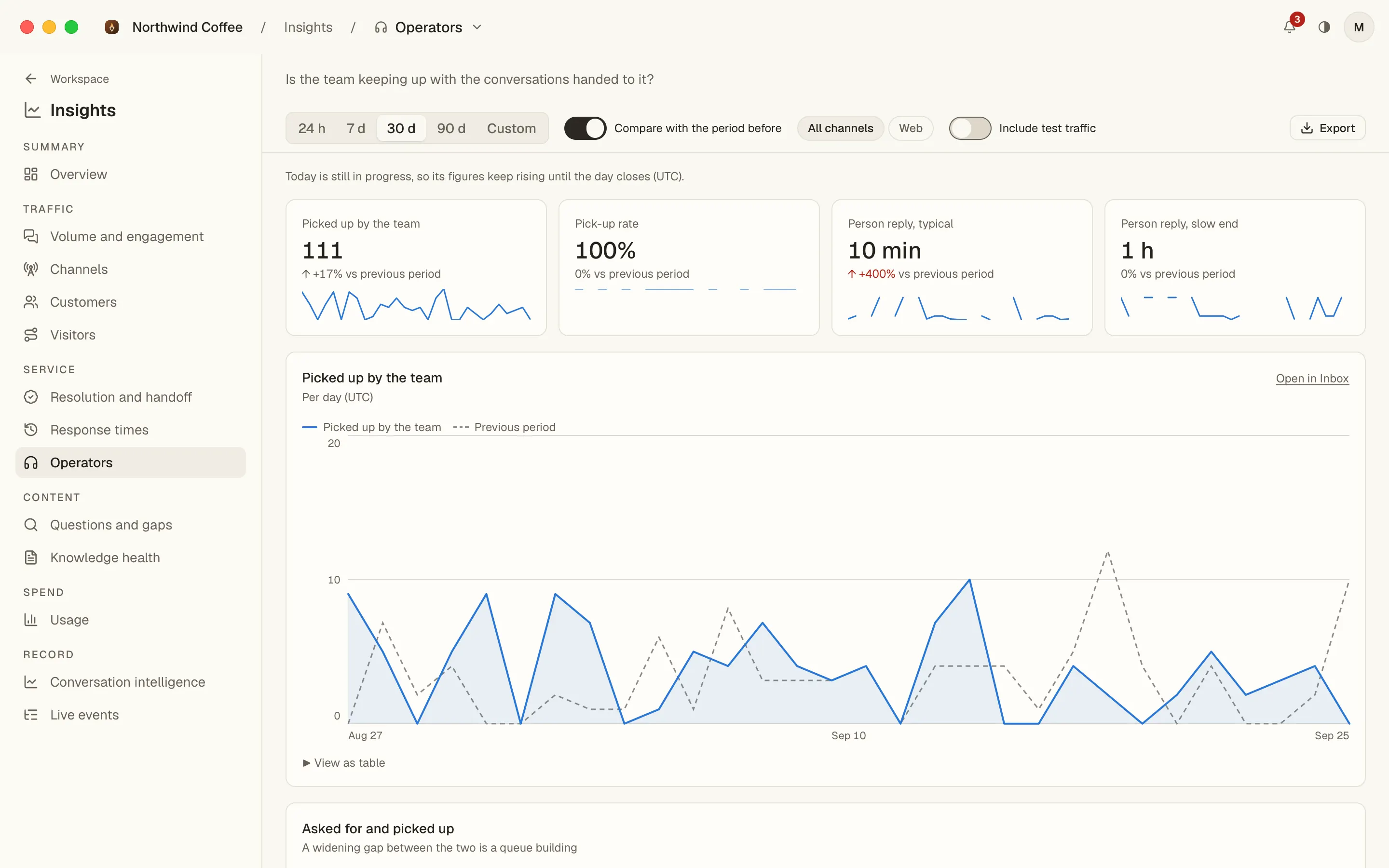
Conversations the team picked up, the pick-up rate and how fast a person answers, typically and at the slow end, with a daily line against the previous thirty days.
No queue building up
- Requests for a person
- Picked up
- First-answer wait
- Team load by channel
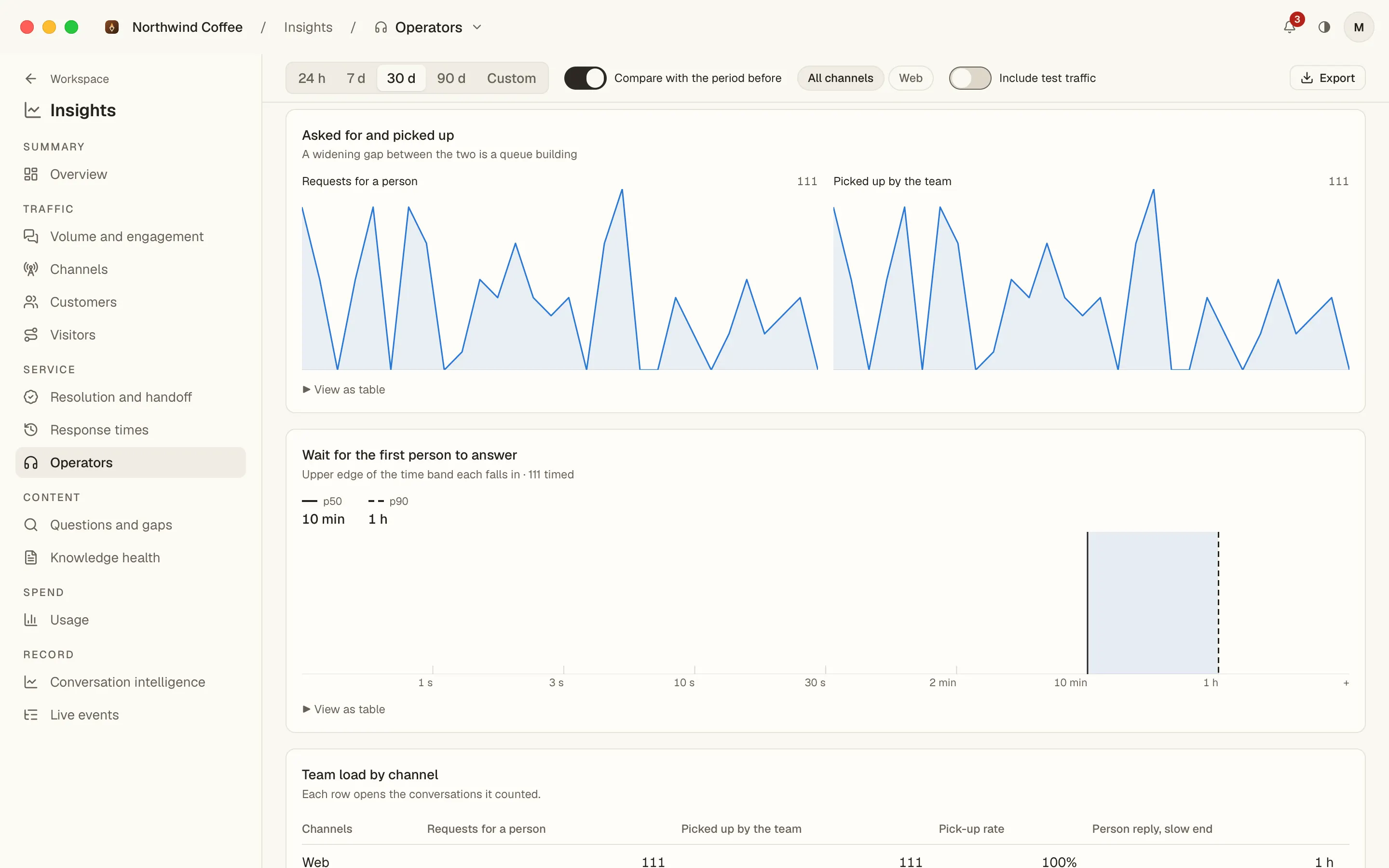
Requests for a person beside the ones the team took, day by day, where a widening gap is a queue forming, and the wait for the first answer in the time bands the Console groups it into.
What it costs, clearly
- Spend per window
- Requests and tokens
- Per model provider
- Usage against limits
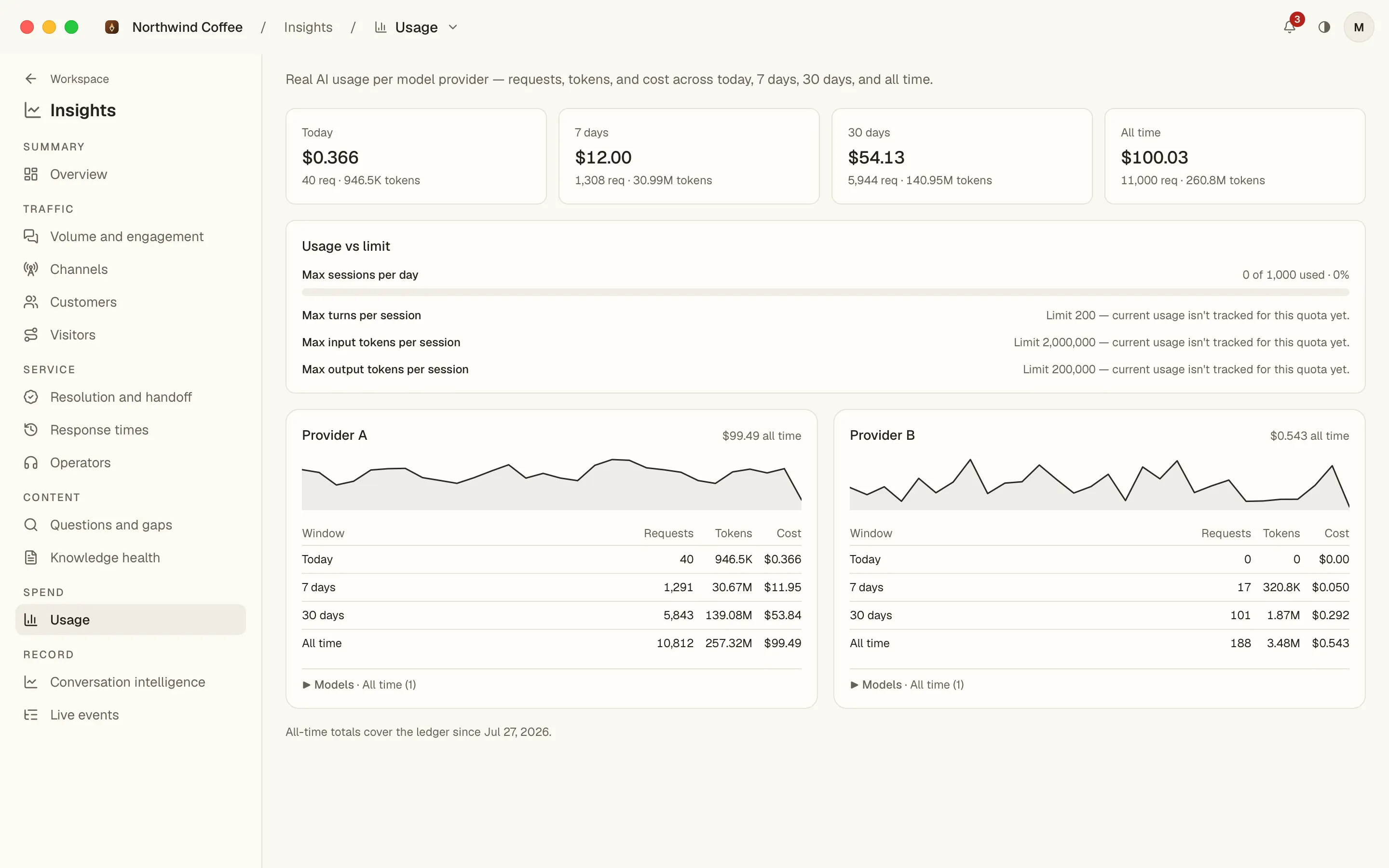
Spend, requests and tokens for today, the last seven days, thirty days and all time, per model provider, each with its own curve, and the session limits you set next to what has been used.


What's new
Everything that reached you since Sep 13, 2026.
In the app
- On a Mac the window buttons sit on the Console's own bar — one bar, the same air around every control.
In the Console it opens
- The rail, the Inbox and the Overview follow the language you pick.
- Soft is the default look in light and in dark, and breadcrumbs read as a plain path, a slash between places.
- Inbox replies show as formatted text — bold, lists and links — never as raw markup.
- Every workspace wears its own icon in the switcher and the breadcrumb, the way its website shows it.
- Press ⌘K anywhere: search opens centred, groups its results by page and speaks your language.
- Setting up moved into the chat: name your website and your mate builds the assistant from it while you watch.
All downloads & details
5 builds — macOS 1.1.1, Windows/Linux 0.2.2, with checksums, requirements and install notes.
Questions people ask
Short answers, the same for every platform we publish.
- Yes. The macOS build is signed with our Developer ID and notarized by Apple, so it opens like any other app — no warning, nothing to bypass. Every download on this page lists its size and SHA-256 checksum so you can check what you got.
- Depends on the platform. Auto-updates: macOS. Not yet — download a new version by hand: Windows 0.2.2, Linux 0.2.2.
- No. The app is a thin window onto the Console you use on the web, so every Console improvement — a new page, a fix, a language — is there the next time you open it. Only the shell itself arrives as a new build.
- Nothing of its own. The app is a window onto the Console you already use over HTTPS: it has no analytics or crash-reporting library, and third-party analytics never load inside it. What the Console itself stores about your workspace is described in the privacy policy.
- Yes. The desktop app is free on every plan. It signs in with your existing AI Assistant account — there is nothing extra to buy.
- Of course. The Console is identical in a browser tab; the app adds the system notification the moment a conversation needs you, the badge that counts what is waiting, and a click that lands you in the exact thread.
Prefer the browser?
The Console is the same in every browser — the desktop app only adds the notifications.